

Credit Management
The Credit Management application lets administrators and users manage credit balances, limits, requests, and automatic credit top-ups within a license.
The Credit Management application lets administrators and users manage credit balances, limits, requests, and automatic credit top-ups within a license.
The application contains the following sections:
- Users: managing users and their limits
- Usage history: overview of all transactions
- Packages: list of all top-ups
- Limit settings: definition and management of limits
- Requests: approving and submitting credit requests
- Automatic top-up: automatic credit top-up
Users
The Users tab lists all users within the license.
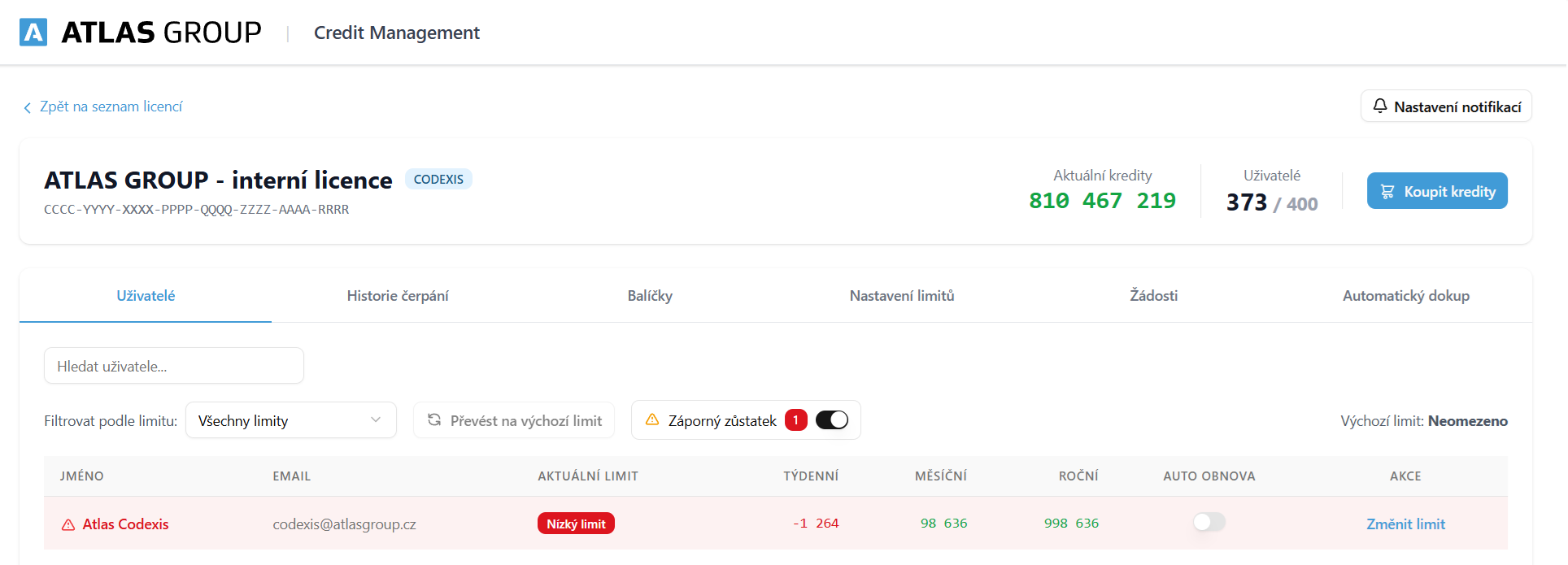
Features on the Users page
- Search: searching for users by name or e-mail.
- Filtering: the option to filter users by limit (e.g. "All limits", "Disabled", etc.) and applied filters, e.g. Negative balance: displays users who are below their limit and cannot submit queries.
- Limit overview: for each user you can see the configured limit and the current weekly, monthly, and yearly balances.
- Auto renewal: the option to enable automatic limit renewal for a selected user. When a user runs out of their limit and requests a renewal, their limits are renewed automatically.
- Change limit: the "Change limit" button lets you assign a different limit profile to a user.
Tip: The "Negative balance" filter is useful for quickly finding users who have run out of credits and need attention.
Usage history
The Usage history tab displays all transactions (credit spending and top-ups) on the license.
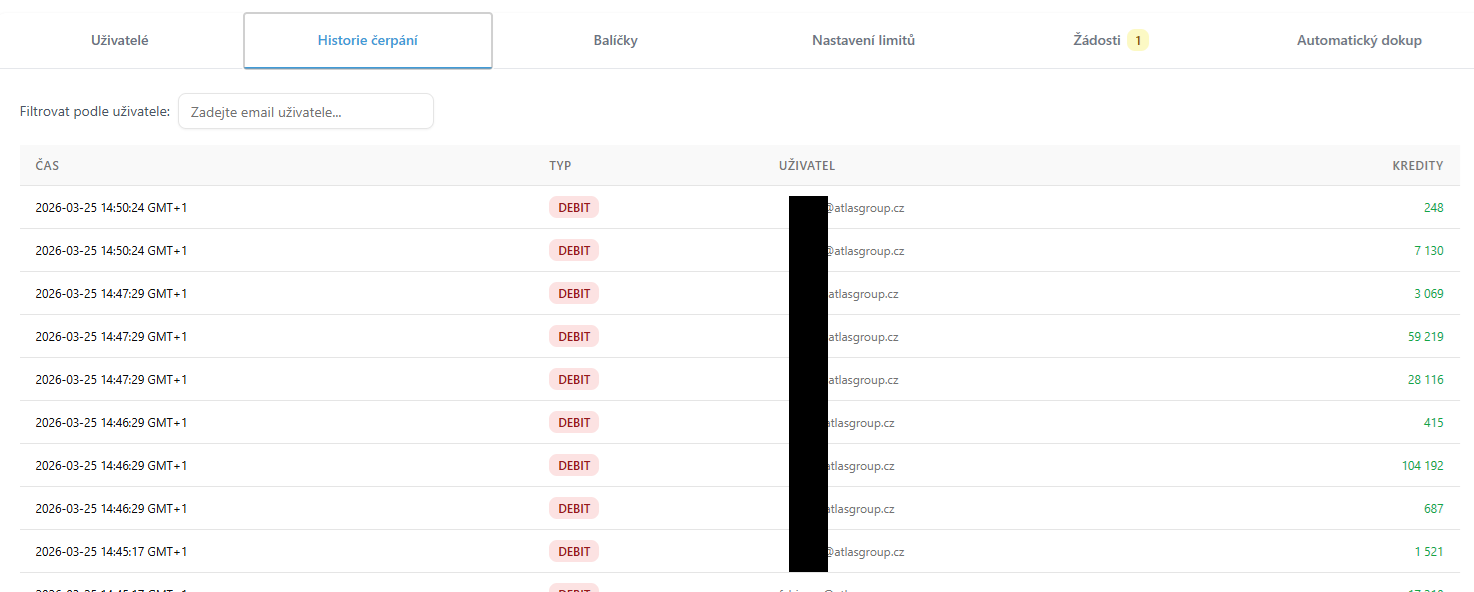
Record details
- Time: the date and time of the transaction.
- Type: the type of transaction (e.g. DEBIT, CREDIT).
- User: the e-mail of the user who used the credits.
- Credits: the number of credits consumed.
Using the Filter by user filter, you can display transactions for a selected user only.
Packages
The Packages tab contains a list of all credit packages purchased on the license, including refunds.
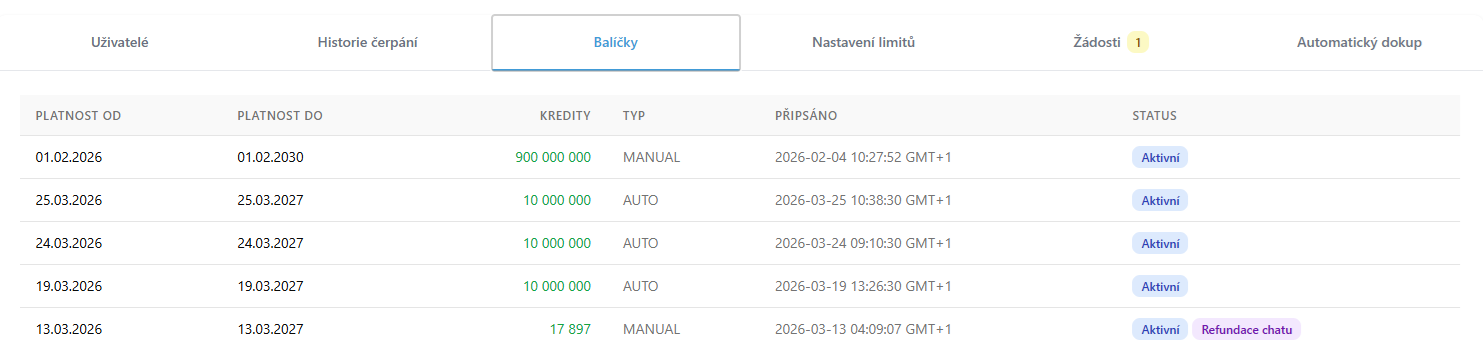
Package details
- Valid from / to: the validity period of the package.
- Credits: the number of credits in the package.
- Type: the method of acquisition (MANUAL = manual purchase, AUTO = automatic top-up).
- Credited: the date and time the credits were credited.
- Status: the status of the package (e.g. Active, Expired, etc.).
Limit settings
On the Limit settings tab you can define credit limits, which are then assigned to individual users on the Users page.
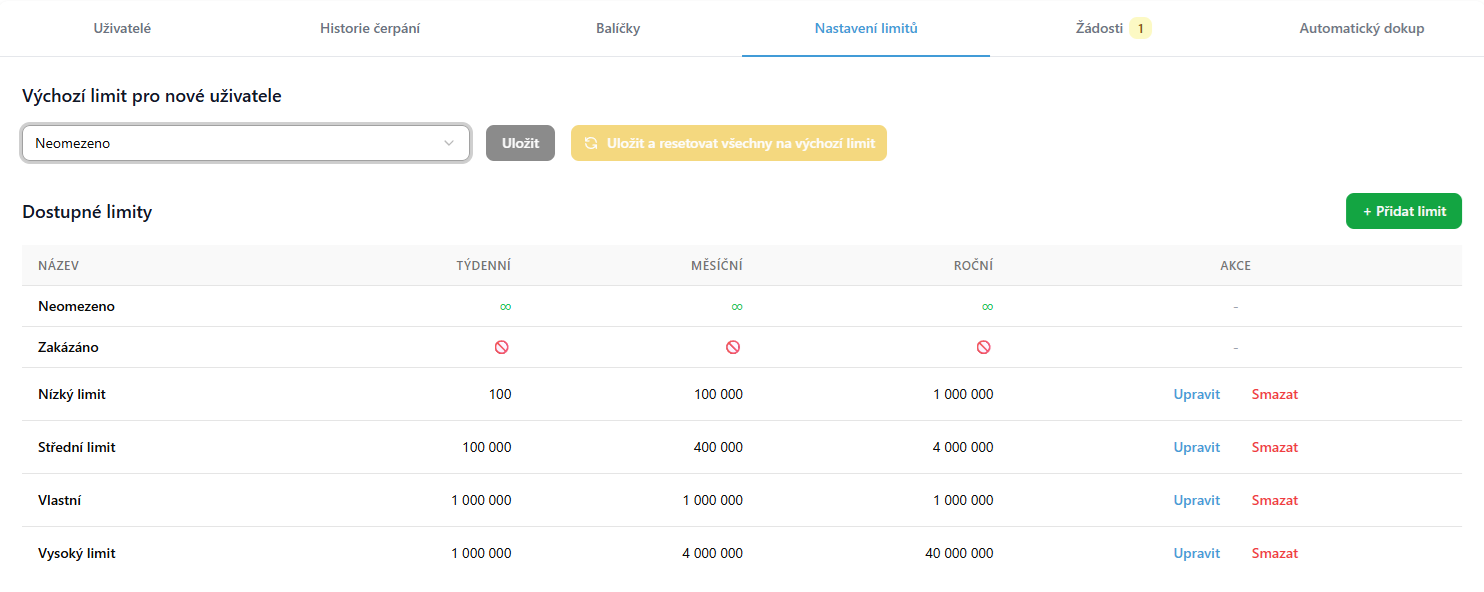
Page contents
- Default limit for new users: from the drop-down list you select the limit that is automatically assigned to new users. The Save button sets the default limit, while the Save and reset everyone to the default limit button additionally applies it to all existing users.
- Limit overview: a table with all limits and their values for the weekly, monthly, and yearly periods. You can define the limits yourself according to the needs of your organization.
- + Add limit: creates a new limit profile with custom values.
- Edit: changes the values of an existing limit.
- Delete: removes the limit.
Requests
The Requests tab is used to manage user requests for credit renewal.
Administrator view
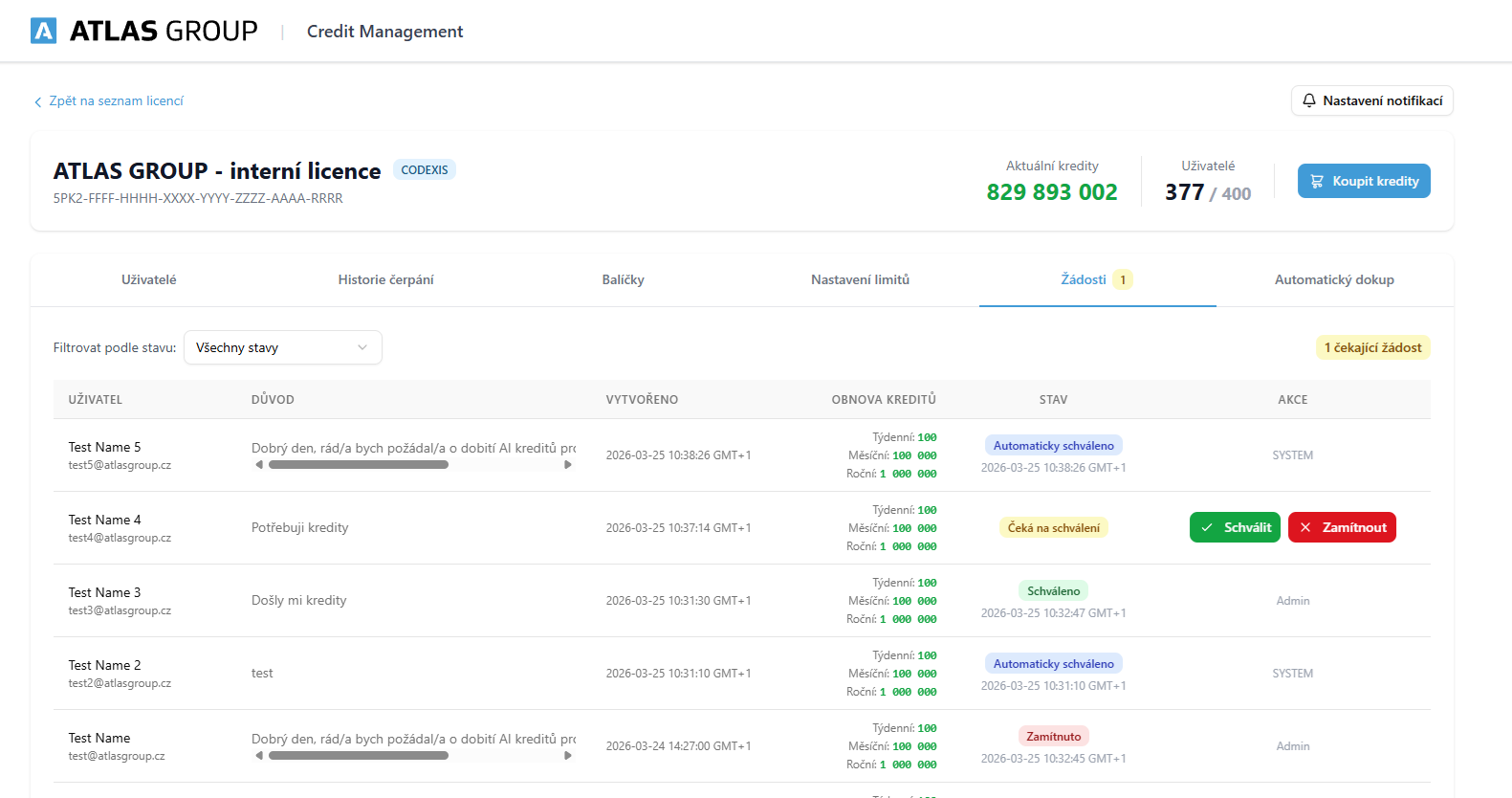
The administrator sees a list of all requests with the following information:
- User: the name and e-mail of the requester.
- Message: the reason for the request.
- Created: the date and time the request was submitted.
- Current limit: which limit profile the user has configured.
- Request status: pending approval, automatically approved (auto renewal), approved, rejected.
- Actions: the Approve or Reject buttons.
After approval, the user's limits are renewed and they can submit queries again. The user receives an e-mail notification about the outcome.
User view
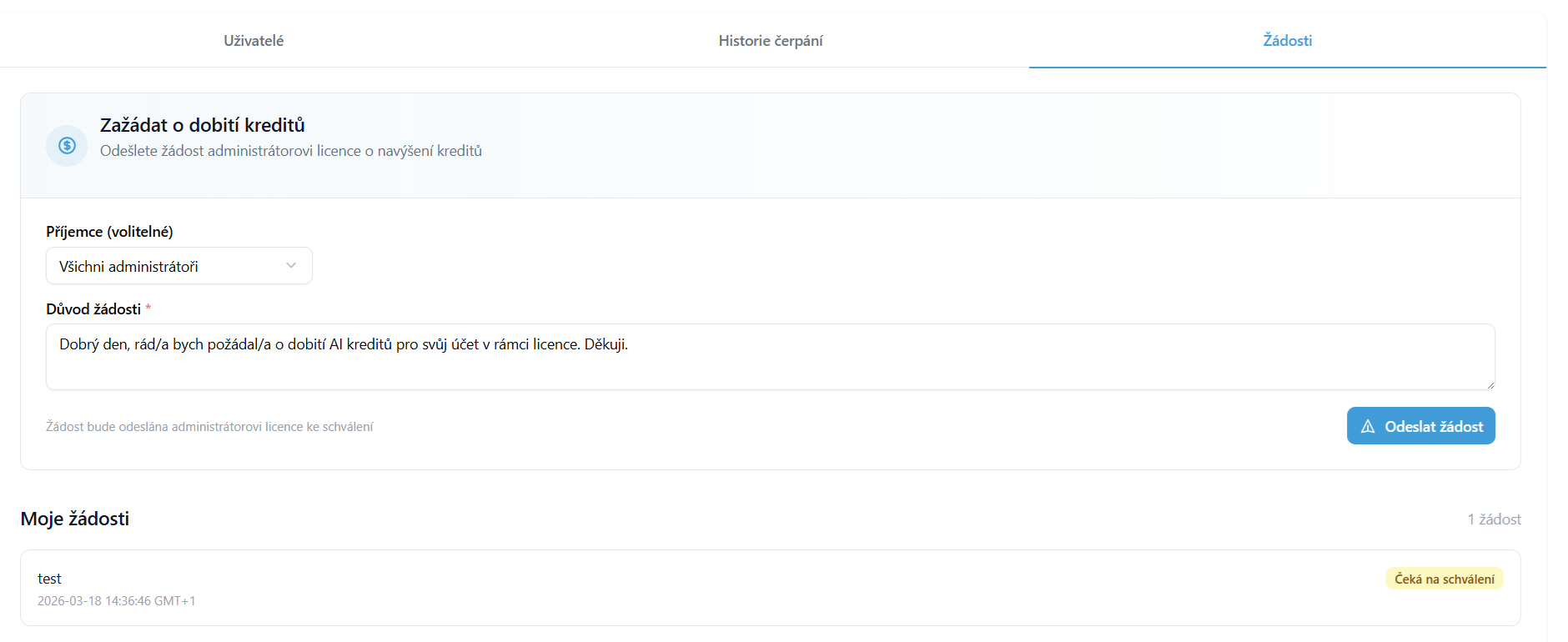
A user can submit a request to top up credits:
- Go to the Requests tab.
- Select a Recipient: "All administrators" or a specific administrator (optional).
- Fill in the Reason for the request: a text field describing why they are requesting credits.
- Click Submit request.
At the bottom of the page there is a My requests section, where the user sees an overview of their submitted requests and their status (pending approval / approved / rejected). After approval, they receive an e-mail notification.
Note: A request for credit renewal can be submitted at any time. There is no need to wait until the credits run out completely.
Automatic top-up
The Automatic top-up tab lets you set up automatic credit top-up for the entire license.
Inactive state
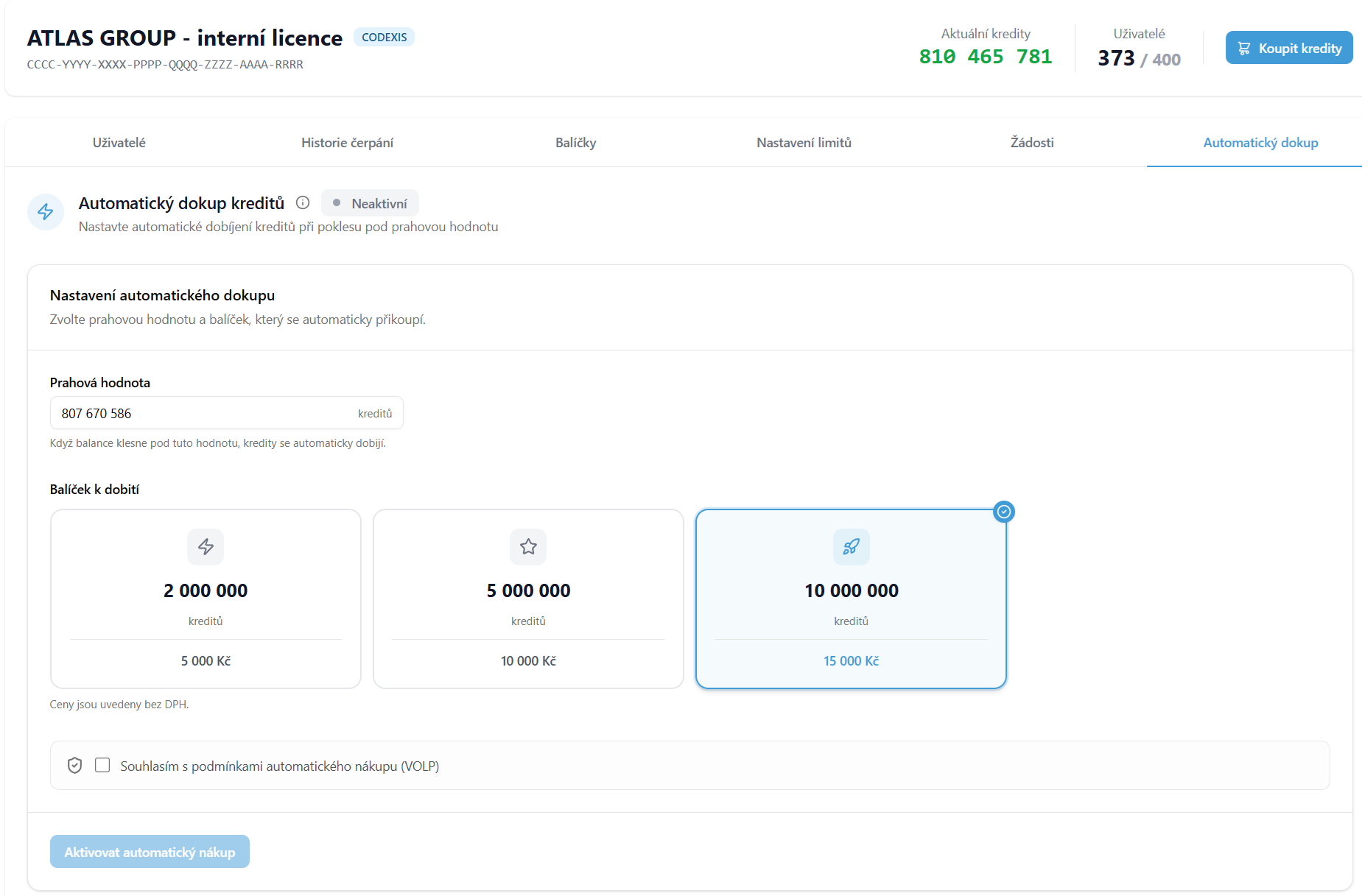
By default, automatic top-up is turned off. To activate it:
- Set the Threshold value: the credit amount below which automatic top-up is triggered when the balance drops.
- Select a Package to top up: one of the available packages (e.g. 2,000,000 / 5,000,000 / 10,000,000 credits).
- Agree to the automatic purchase terms (Terms and Conditions).
- Click Activate automatic top-up.
Active state
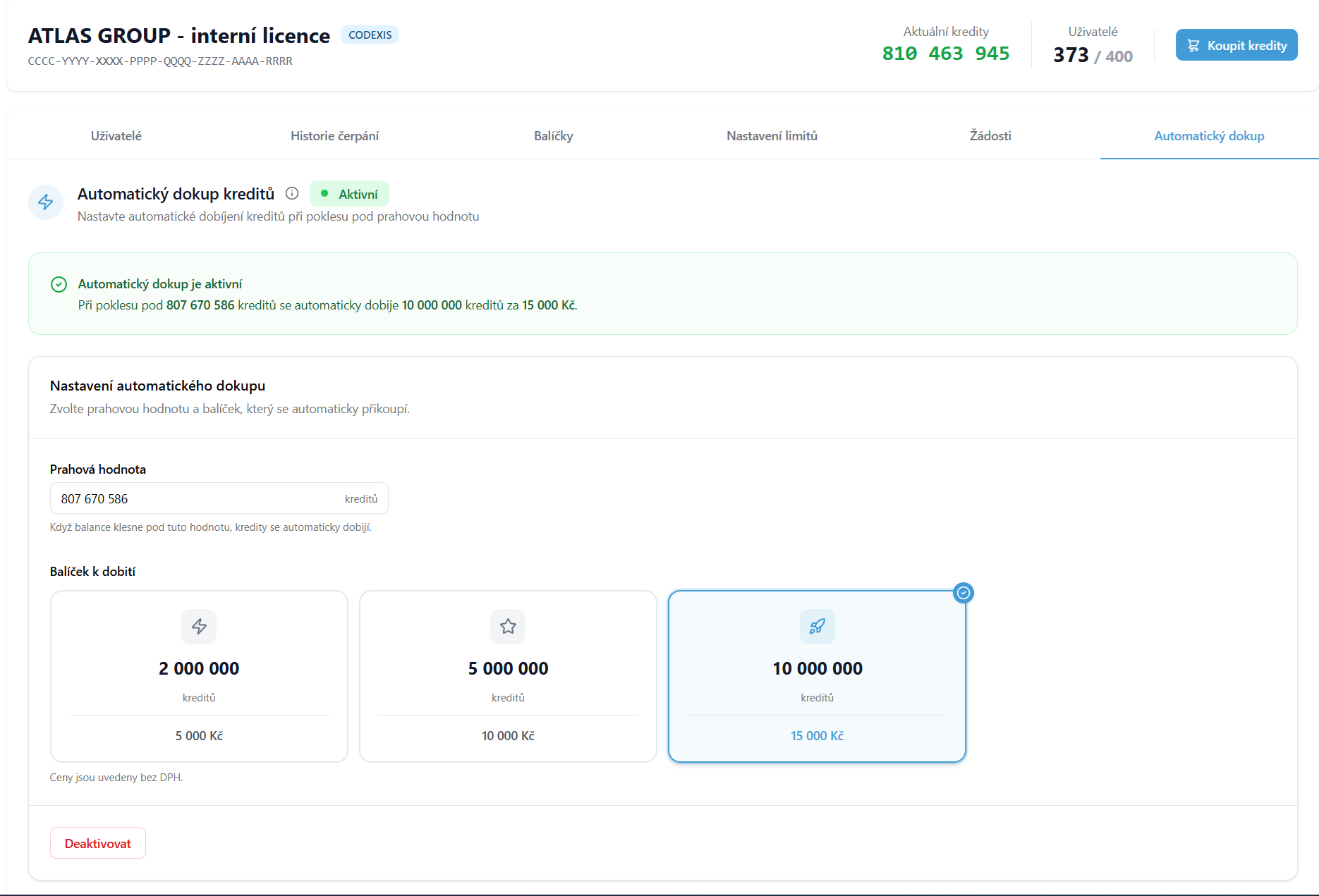
Activation confirmation
- Automatic top-up is active: green indication.
- The configured threshold value and the selected package are displayed.
- When the credit balance drops below the threshold value, an order is created automatically and the credits are credited immediately.
- The administrator receives an invoice for the topped-up credits.
- Automatic top-up can be deactivated at any time.
Important: Automatic top-up is turned off by default. Activation requires agreeing to the terms. Invoicing happens automatically.
Notification settings
In the top right corner of the page there is a Notification settings button, which opens a dialog for configuring e-mail notifications.
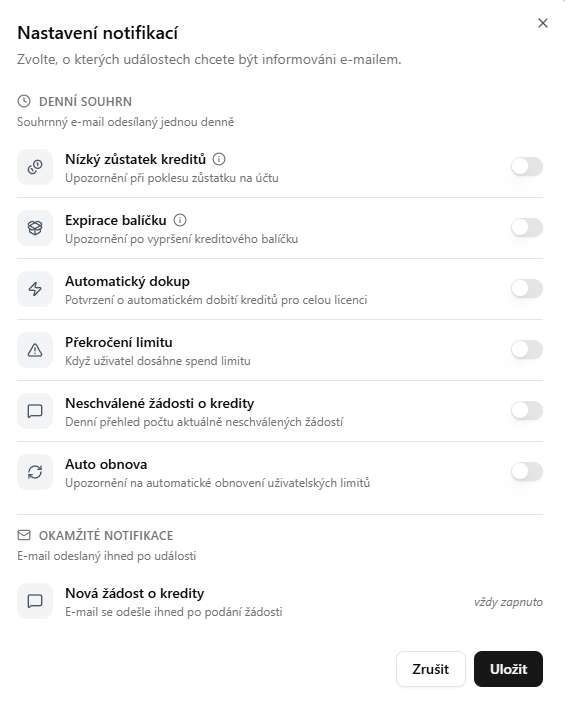
Daily summary
A summary e-mail sent once a day. The following items can be turned on/off:
| Notification | Description |
|---|---|
| Low credit balance | Alert when the account balance drops below 100,000 credits |
| Package expiration | Alert 14 days before a credit package expires |
| Automatic top-up | Confirmation of automatic credit top-up for the entire license |
| Limit exceeded | When a user reaches the spend limit |
| Unapproved credit requests | Daily overview of the number of currently unapproved requests |
| Auto renewal | Alert about automatic renewal of user limits |
Immediate notifications
An e-mail is sent immediately after an event.
| Notification | Description |
|---|---|
| New credit request | The e-mail is sent immediately after a request is submitted (always on) |
Buy credits
The Buy credits button (in the top right corner) redirects you to the e-shop, where you can manually purchase a credit package. After selecting a package and a license, you complete the order in the standard way.