

SharePoint
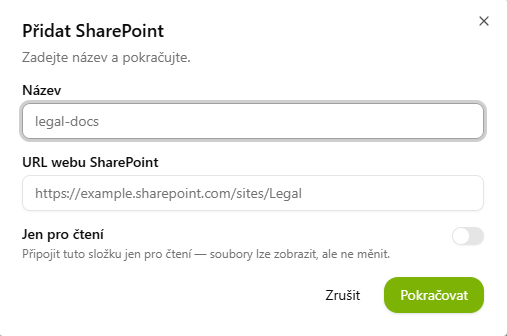
For SharePoint you enter a link to a specific site in the form https://…sharepoint.com/sites/…. You can connect several sites at once and then run a single conversation over all of them — the AI treats them as one shared workspace, so it can connect documents across projects and teams.
Connecting
- Choose the SharePoint provider and name the connection.
- Paste the SharePoint site URL (see the box below for how to find it).
- Optionally enable Read-only and confirm.
- Sign in with your Microsoft account — just like with OneDrive.
How to find the site URL?
Open your SharePoint site in a browser and copy the address from the address bar. The correct link always has the form https://companyname.sharepoint.com/sites/SiteName — e.g. https://advokatnovak.sharepoint.com/sites/Litigation. If anything follows the site name (e.g. /SitePages/Home.aspx), delete that part — the link ends with the site name.
Do not enter an address starting with …-my.sharepoint.com (that is your OneDrive) or a link to a specific document or folder copied via the "Share" button.
Why a specific site and not the whole SharePoint? In a larger organization, SharePoint can hold hundreds of thousands of documents across many sites and libraries. By entering a specific site URL (/sites/…) you explicitly define which space the AI may work with — it sees nothing outside it. This gives you full control over the data the agent can access. With OneDrive you don't need to worry about this, since it only contains your own files.