

Conversation
Start a new conversation in CODEXIS AI. Choose Chat or Agent mode, enter your question, attach documents and set skills, jurisdiction and model.
The conversation is the main working screen. You enter questions, attach documents and decide what the AI works with. Start a new one with New conversation in the left menu.
Above the input field you switch between two modes, Chat and Agent. They differ in what you can set for a request.
Chat
Chat is for answers, research and legal texts. Ask in the Ask anything field and send with Enter or the green button.
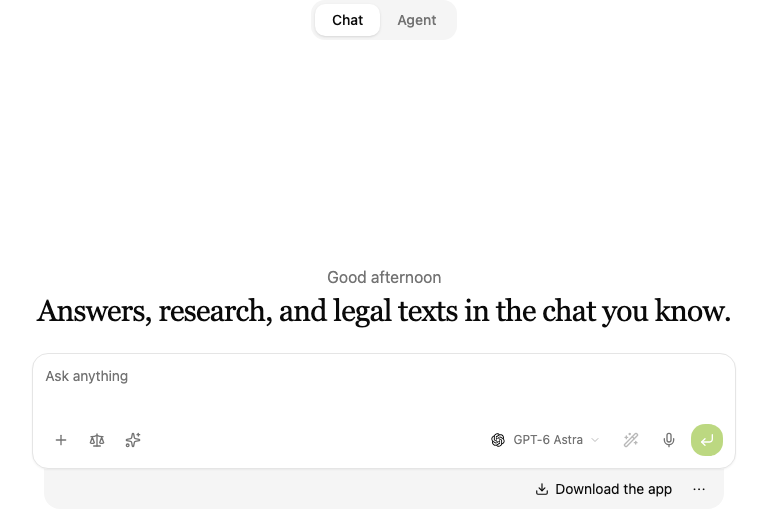
The toolbar offers:
- + attaches materials to the question, either Upload files or Upload folder.
- Skills opens a list where you tick what the conversation should use, such as CODEXIS - Legal database, ARES or the Czech cadastre. Confirm with Done.
- Jurisdiction sets which countries' law the AI works from. The same menu turns on Web search.
On the right you choose the model and response profile, run Enhance prompt, dictate with the microphone or send the message. When prepared assistants are available, the Assistants button below the field lets you pick an assistant for the conversation.
Agent
The agent has full control of files and creation across the environment. You write the request in the Give the agent a task field.
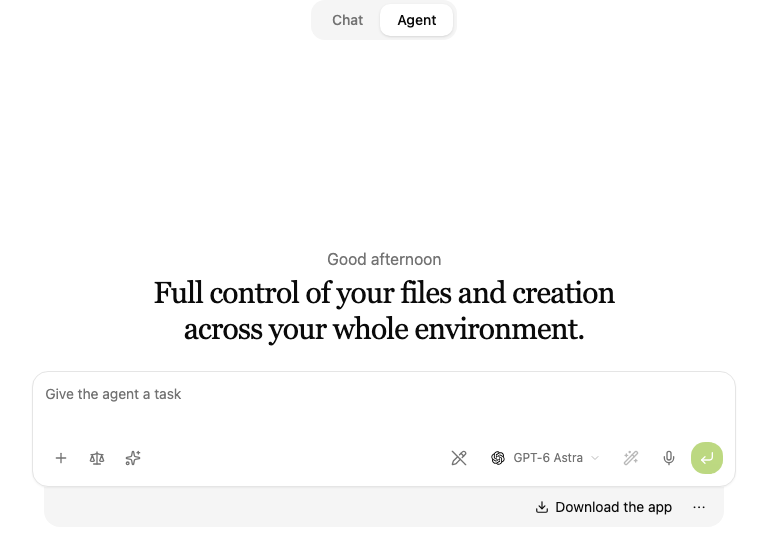
Read-only mode lets the AI investigate and answer but stops it changing files.
If you have created projects or connected storage, the Projects and Connections tiles below the field let you choose the project and storage the AI works with. The left menu also offers Projects, Connections, Automations and Apps.
Attaching materials
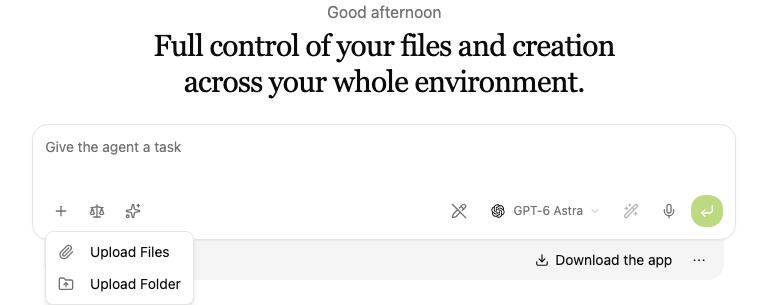
The + button offers Upload files and Upload folder. Uploaded documents are available to the AI when it answers, so it can work with them directly instead of you pasting text into the question.
Skills
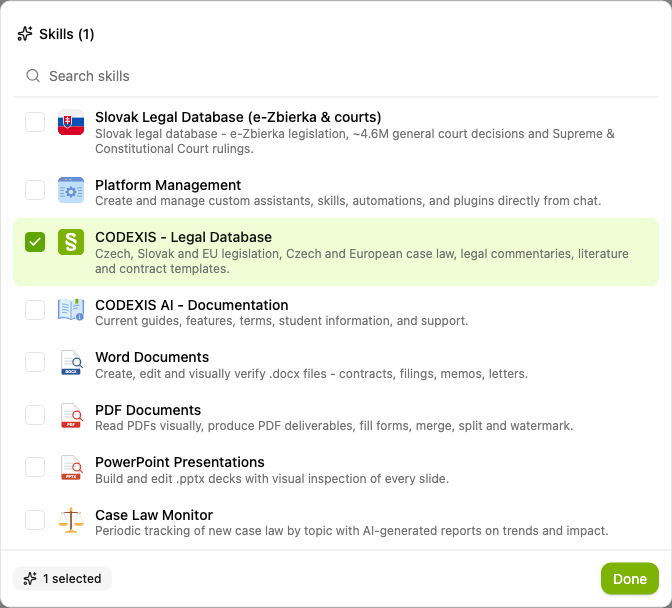
Skills are the procedures and tools the AI uses in the conversation. Pick them from the list; you can search by name.
Jurisdiction and web search
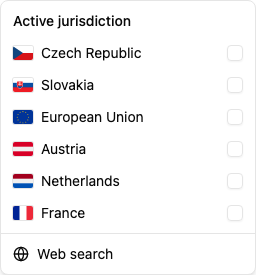
In the Active jurisdictions menu you tick the Czech Republic, Slovakia, the European Union, Austria, the Netherlands or France, which sets the law the AI works from. At the bottom of the menu you turn on Web search.
Model and response profile
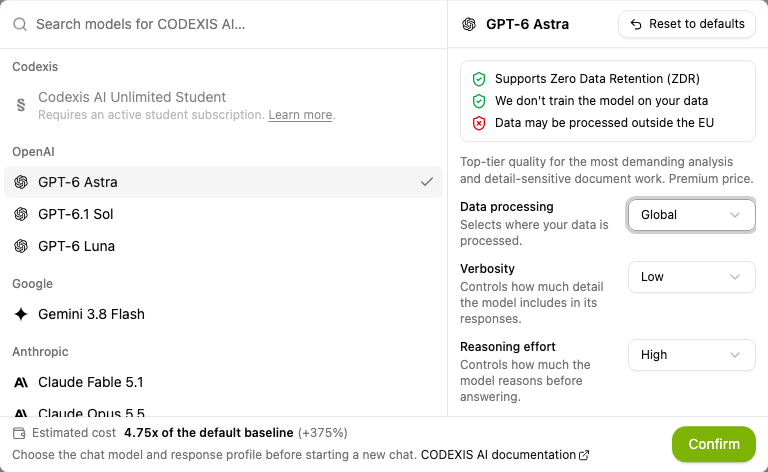
The model picker lists everything from the strongest models to the economical ones, each with a short description. GPT-6 Astra, GPT-6.1 Sol and GPT-6 Luna are currently available, along with the Claude 5.5 models (Opus, Sonnet and Haiku), Claude Fable 5.1, Gemini 3.8 Flash and others.
On the right you tune the response profile: data processing, verbosity, reasoning effort, processing class and context size. The estimated cost against the default baseline updates as you go. Confirm with Confirm; Reset to default restores the original settings.
The picker shows only the models the license administrator has allowed. If they also require EU data processing or zero data retention, models without those guarantees are greyed out and cannot be selected. See the Allowed model, EU and ZDR settings chapter for details.
Enhance prompt
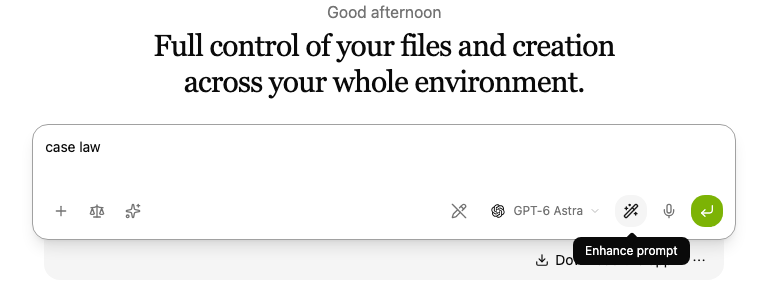
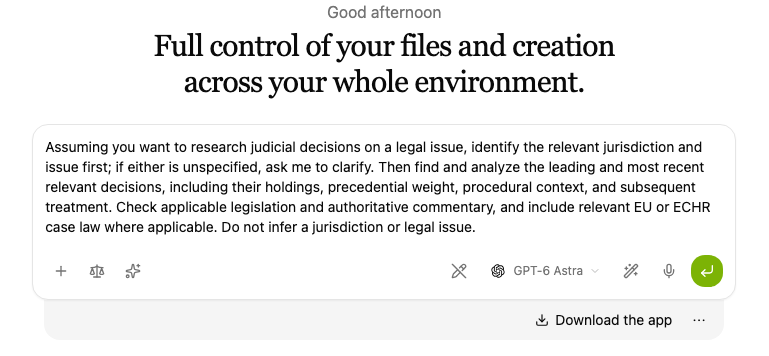
The wand icon has the AI rewrite and expand your request into a more thorough prompt, turning a brief question into a precise professional brief.
After choosing Enhance prompt, you can edit the expanded request before sending it.
Source preview in the chat
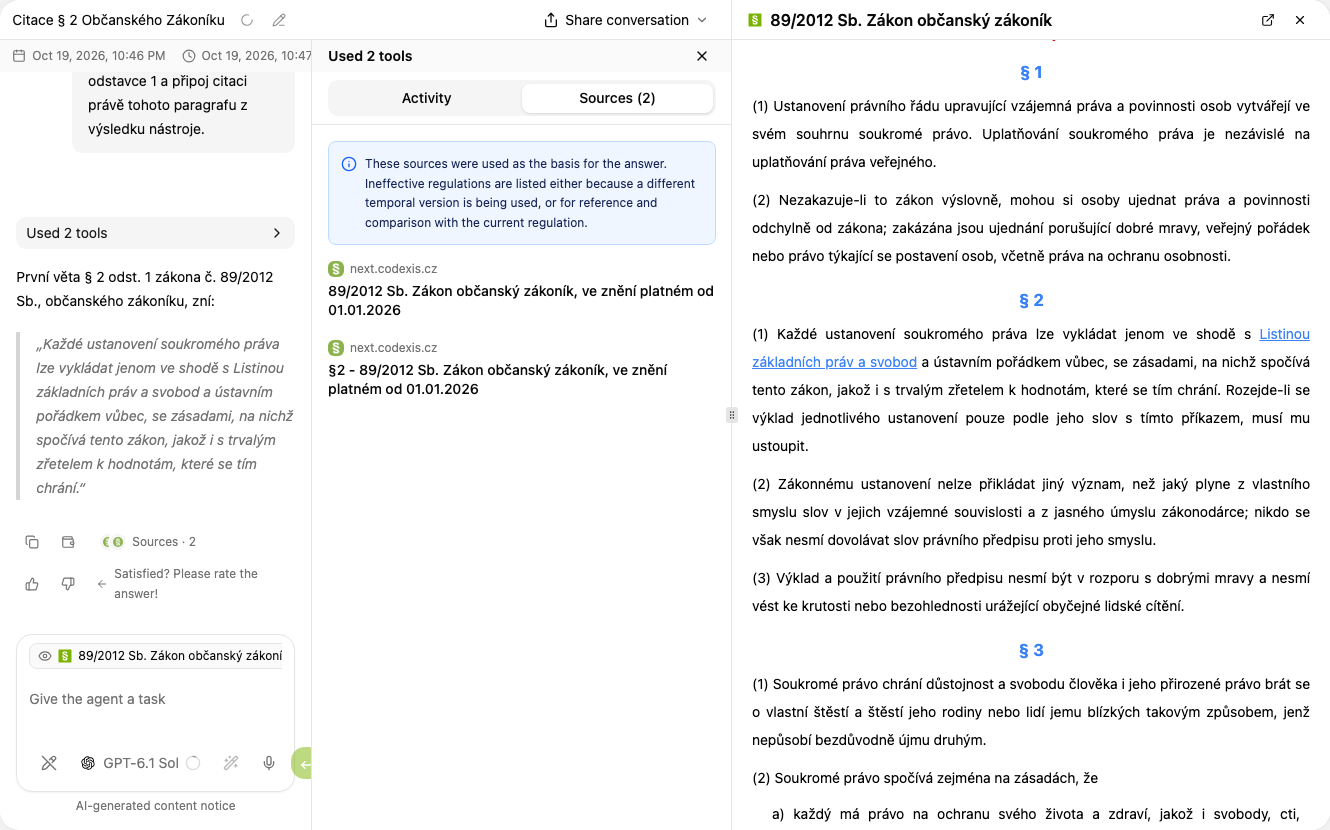
When an answer cites a legal source, clicking it opens a panel on the right with a preview of that regulation, at the exact place the answer refers to. You can check the wording without leaving the conversation.
Next steps
Conversations can be grouped into projects, where they share instructions and materials. Find older ones through conversation search; for your own procedures, see Skills.
2. Projects
A workspace for a matter, its files, conversations, connected folders and automations.
4. History and conversation search
Find an earlier CODEXIS AI conversation by its content as well as its name, narrow the search to one project, and pick up unfinished work from the history in the left panel.