Automations
Schedule CODEXIS AI Agent to carry out a task regularly and follow the results of each run.
An automation runs a given task on a schedule, without you doing anything. It suits repeated work: a daily check of monitored entities, a weekly review of the documents in a folder or a monthly summary of legislative changes.
In the left menu open Tools and Automations. The item is visible in Agent mode.
Creating an automation
In the "Describe the automation — what it should do and roughly when…" field, write the task and the rough frequency in plain language, for example "Every Monday morning, check new employment law rulings and send me a summary". The AI fills in the rest with follow-up questions.
The From template button in the top right offers ready-made automations from your installed add-ons. Pick a template and the automation starts running on its schedule right away.

Under the input field, the Projects and Connections tiles set which project the automation runs in and which storage it works with. Only what you already have is offered, so create the project and connect the storage first. Here you only select them.
The schedule
An automation repeats daily, weekly or monthly. A weekly schedule takes days of the week, a monthly one a day of the month. Instead of an exact time you choose a part of the day: morning, afternoon, evening or night. Within that window the run starts at a random time, which spreads the load on the system.
Working with an automation
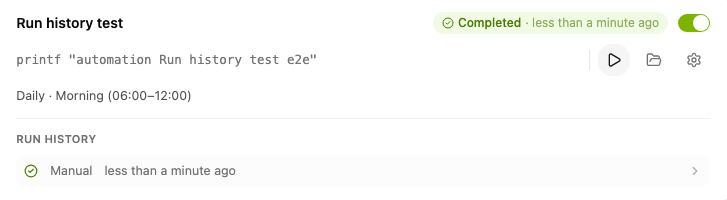
Each automation card has an Active switch that turns scheduled runs on and off, plus buttons to run it outside the schedule (Run now), open its workspace and open its settings. From the settings you edit, duplicate, share or delete the automation.
The top right of the card shows the status of the last run and when it happened. Below the card, Run history lists the results of previous runs. Click a run to see its details, including a link to the chat and the credits it used.
Chats from automations
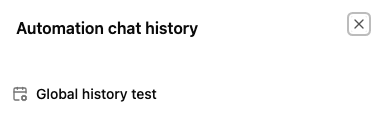
Each automation run creates a chat with its output. Find them together under the Run history button in the top right, in the Automation chat history panel. Click a chat to open it and read its result just like a conversation you started yourself.