

Allowed model, EU and ZDR settings
The license administrator decides which models users may pick: specific allowed models, only models with EU data processing, only models with zero data retention (ZDR), or a combination. It is set in Credit Management; other models cannot be selected and conversations running on them are locked.
The license administrator decides which models the users of the license can pick in the model picker. They can select specific allowed models, allow only models that process data in the European Union, or only models with zero data retention (ZDR). The restriction applies in both CODEXIS AI Chat and CODEXIS AI Agent. On this page you set everything in Credit Management. You need license administrator access to the Credit Management application.
What the EU and ZDR requirements mean
The EU data processing requirement means the model runs in European Union countries and neither requests nor responses leave the EU. The zero data retention (ZDR) requirement means the model provider stores neither requests nor responses.
OpenAI's GPT models meet both requirements. Zero data retention and EU processing are agreed with OpenAI by contract; see the Security page for details. You can see which models meet the requirements directly in the model picker: each model's detail lists its guarantees.
Turning on the EU and ZDR requirements
- Open the Credit Management application, pick the license in the license list and go to the License settings tab.
- Turn on Require EU data processing, Require zero data retention (ZDR), or both.
- Click Save settings.
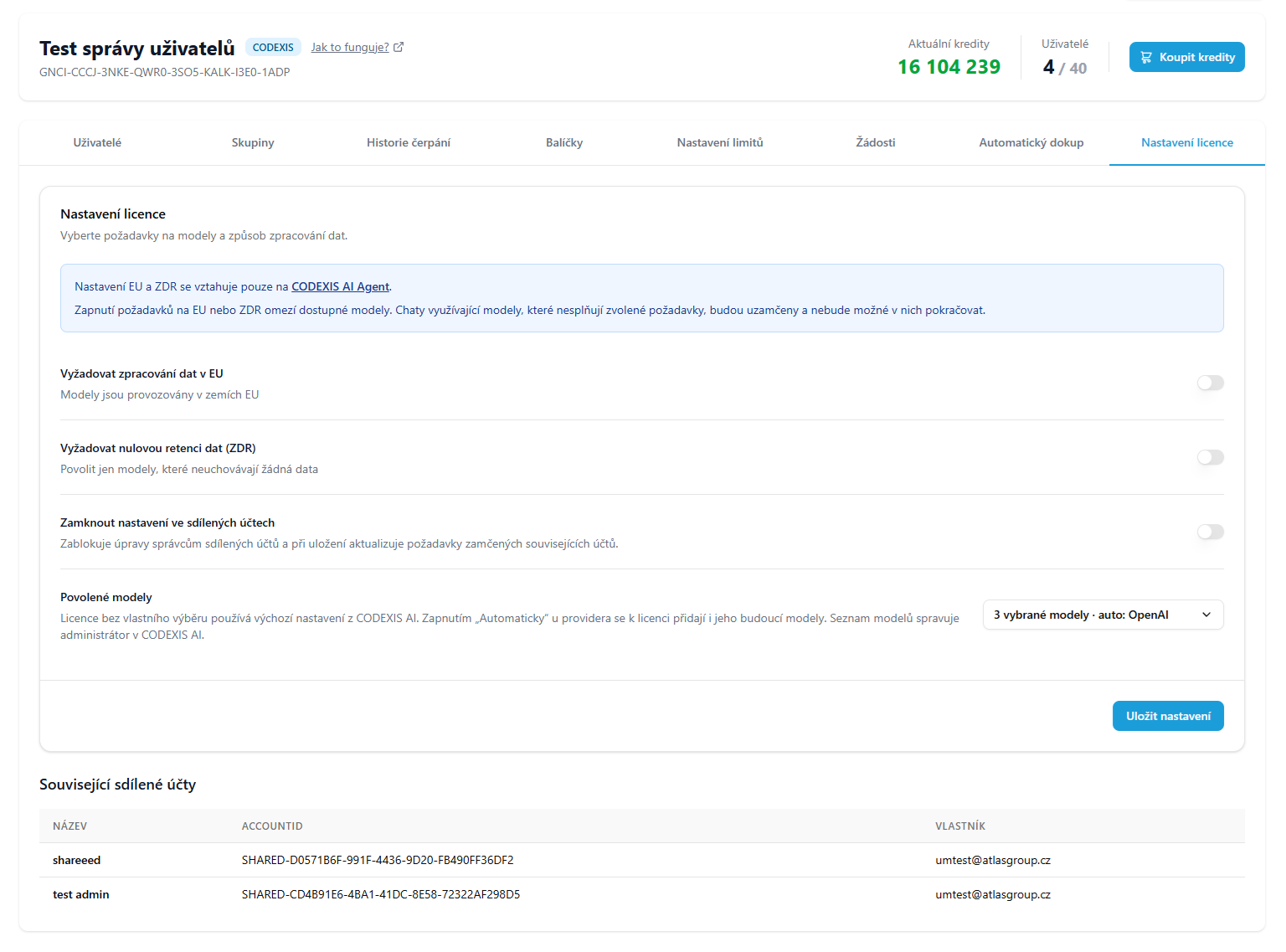
The settings apply to every user of the license. Turn a requirement off the same way.
Allowed models
Besides the EU and ZDR requirements, you can allow users only specific models. A license without its own selection uses the default settings from CODEXIS AI.
- On the License settings tab, open the Allowed models picker.
- Tick the models that users should have available.
- If future models from a provider, such as OpenAI or Anthropic, should be added to the license as well, tick Automatically all models (including new ones) for that provider. This also allows all of its current models.
- Click Save settings.
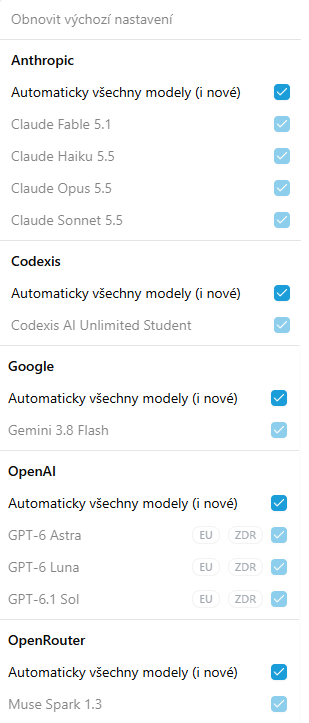
The picker then shows a summary, for example 3 selected models · auto: OpenAI. Restore default settings returns the license to the default settings from CODEXIS AI. Users across the whole license see only the allowed models in CODEXIS AI Chat and CODEXIS AI Agent.
Restricted models and locked conversations
Both the EU and ZDR requirements and the allowed model selection restrict the models available to every user of the license. Conversations running on a model that does not meet the settings are locked and cannot be continued.
Shared credit accounts
A shared credit account has its own EU and ZDR requirements, managed by the account's administrator. The Lock settings in shared accounts toggle blocks their changes, and on save the license's EU and ZDR requirements are written to every locked related account. The related shared accounts, with name and owner, are listed below the settings. Shared accounts are described on the Shared credit account page.
Next steps
The model picker and response profile are described in the Conversation chapter. The other tabs of Credit Management are on the Credit Management page, and OpenAI data processing terms on the Security page.
12. Assistants
An assistant is an AI helper focused on one area, with its own instructions, model and jurisdiction. You create it by describing it in plain language and edit it in a form or with AI.
Integrations
Guides to connecting CODEXIS AI Agent to email, Microsoft 365 applications and your own tools through the API.