Connect OneDrive to CODEXIS AI
Connect OneDrive to CODEXIS AI Agent. Read, edit and create documents with changes saved back to your storage.
Connect your OneDrive and the AI works with it just like you do: it sees your files, reads them, edits them and creates new documents and entire folders, exactly as if you were creating them in your own OneDrive. Changes are written back, so the data always stays in sync.
Connecting
You can connect your whole OneDrive or just one folder in it. The steps:
- On the Connections page, click Connect storage and choose OneDrive.
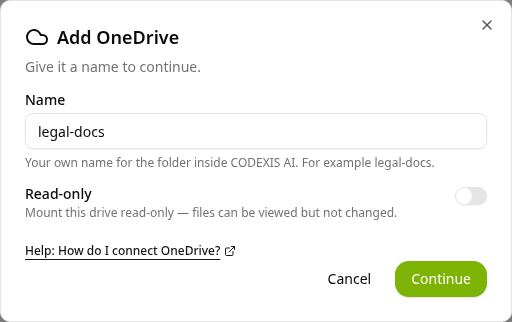
- In the Add OneDrive dialog, name the connection.
- Optionally enable Read-only. The AI Agent can then only view the files, not change them.
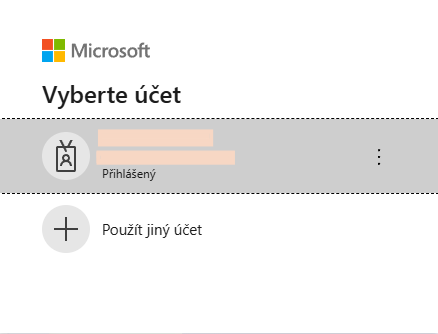
- Click Continue and sign in with your Microsoft account: pick the account and grant access.
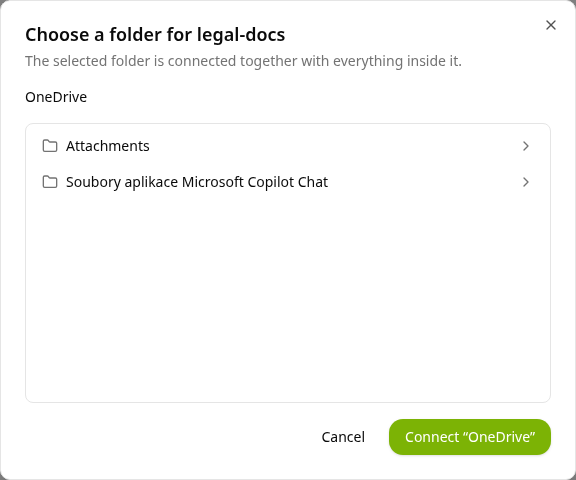
- Choose the folder to connect. Open folders to go deeper, then click Connect with the folder name. The folder is connected with everything inside it. To connect the whole OneDrive, click Connect without opening any folder.
After you sign in, choose the folder to connect. Open folders to go deeper. The Connect button always names the folder you are in, and that folder is connected with everything inside it.