

Cadastre - Tracked Proceedings
Cadastre - Tracked Proceedings watches the status of Czech cadastral proceedings (entry, record, lien) and alerts you to every change.
The Cadastre - Tracked Proceedings app watches the status of Czech cadastral proceedings: entries (vklad), records (záznam) and liens (plomba). You enter the numbers of the proceedings you are interested in and the app follows each one from opening through the lien to the entry being made and the proceeding closed. It alerts you to changes in the app or by e-mail. On this page you switch the app on, connect it to the cadastre and add your first proceeding. You need a ČÚZK API key for this.
Czech application
The app works with data from the land registry of the Czech Republic (ČÚZK) and tracks cadastral proceedings conducted in the Czech Republic.
1. Install the plugin
The app comes with the Czech Property Registry plugin:
- Open Plugins in the left-hand menu.
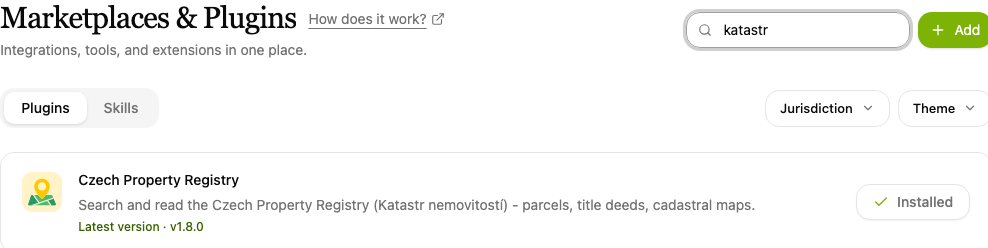
- Type "katastr" into the Search plugins… box and find the Czech Property Registry item.
- Click Install. An installed plugin shows Installed beside its name.
2. Open the app
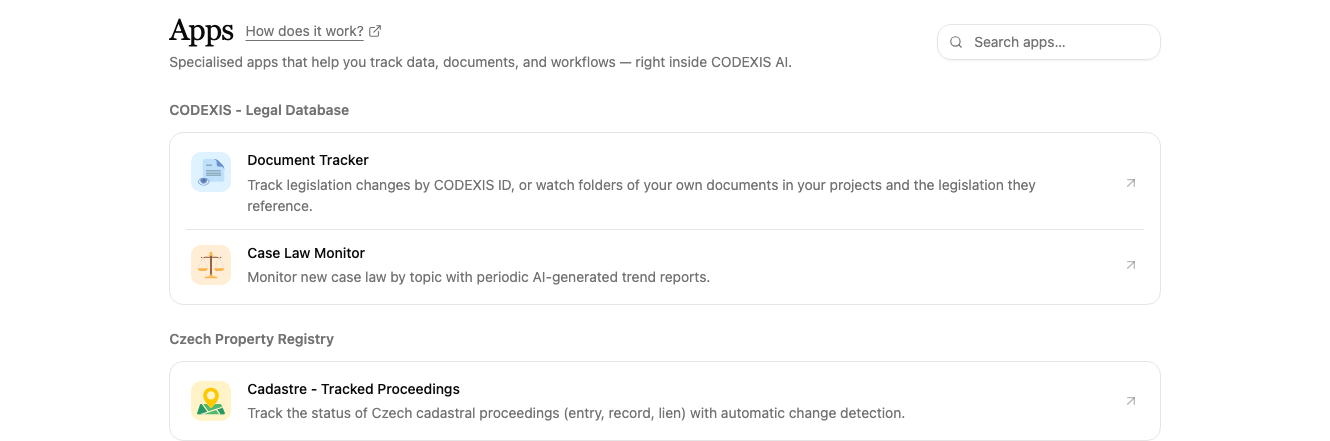
Open Apps in the left-hand menu. In the Czech Property Registry section, click the Cadastre - Tracked Proceedings item.
3. Set up the ČÚZK API key
The app reads data straight from the cadastre, so it needs your ČÚZK API key. Until the key is set, you see a welcome screen saying the ČÚZK API key is not set, and you cannot add or track any proceedings.
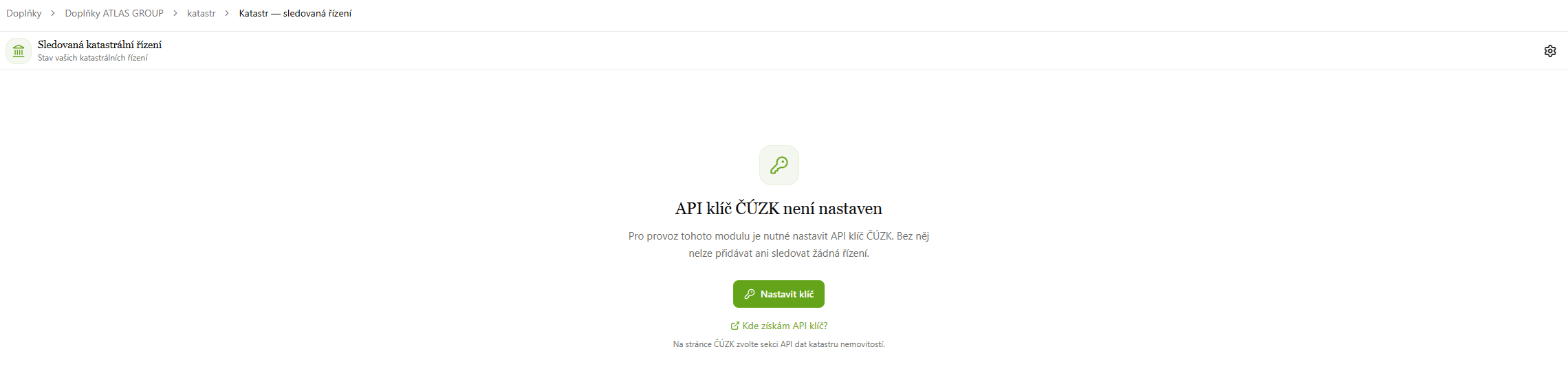
You get the key on the ČÚZK website via the Where do I get an API key? link:
-
The Registration for ČÚZK services (KN) page opens. Sign in, most easily via Identita občana (the Czech national identity gateway), or with a Remote Access account if you have one.
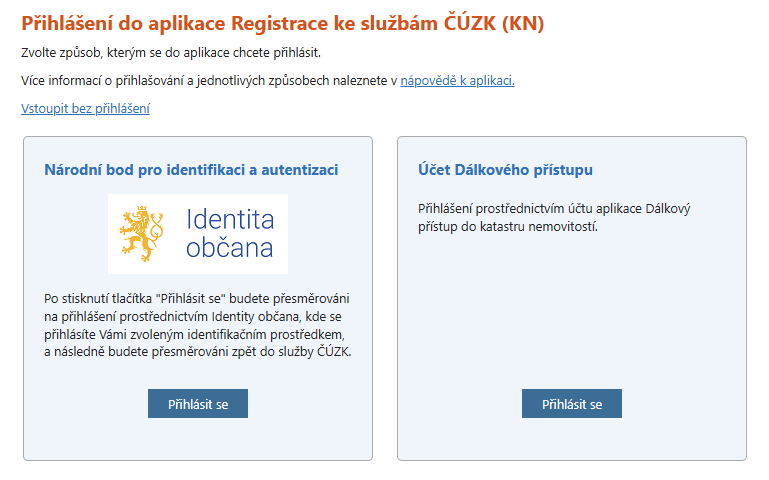
ČÚZK, signing in via Identita občana -
In the Available services overview, choose API dat katastru nemovitostí (land registry data API) and generate your API key.
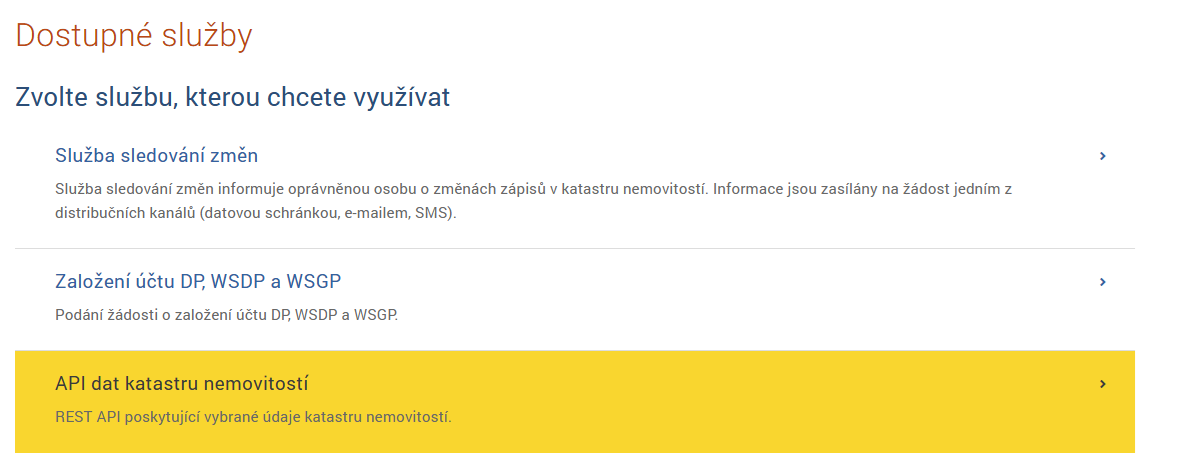
ČÚZK, the land registry data API service -
Go back to the app and click the gear icon in the top-right corner. In Cadastre settings, paste the key into the field in the Cadastre connection section and confirm with Save. The status changes to Connected and the field shows a shortened key. Remove deletes the key from the app.
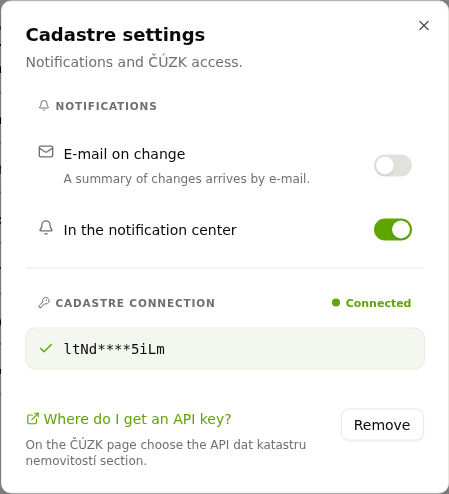
Cadastre settings with notifications and a connected API key
4. Add a proceeding to track
Enter the proceeding number into the field in the top-right corner and click Add. The number consists of the proceeding type (V = entry, Z = record), the number, the year and the code of the cadastral office, for example V-12345/2026-101. You find it on the notice from the cadastre, or you can look it up in Vyhledání řízení at nahlizenidokn.cuzk.gov.cz.
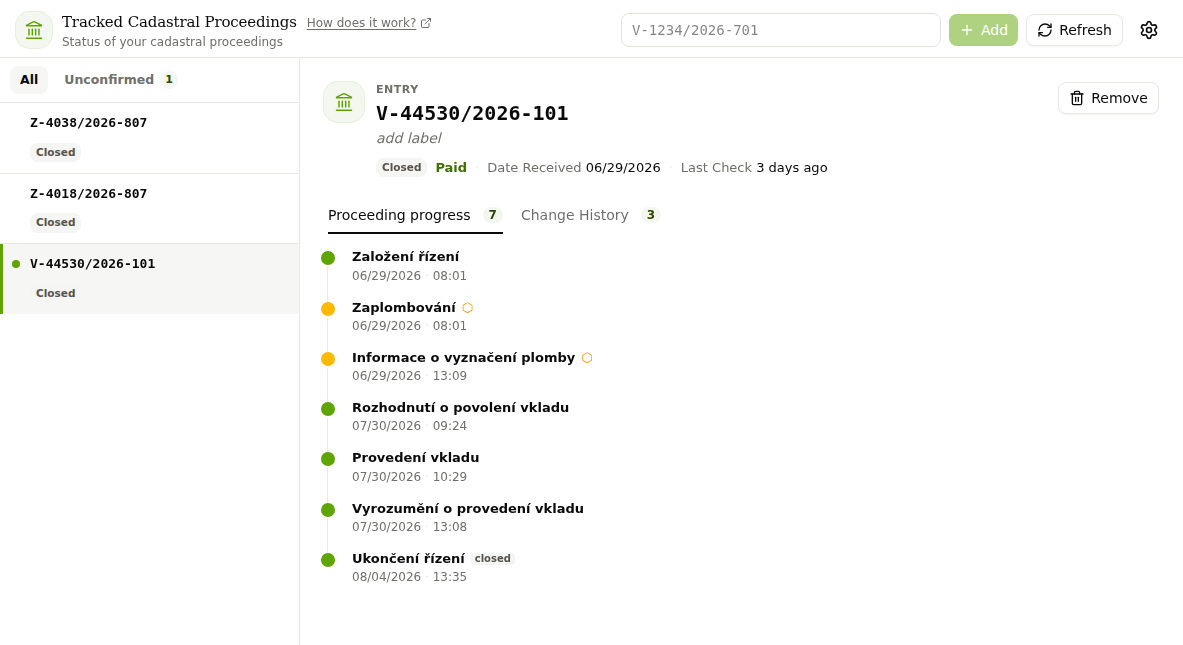
The proceedings you track are listed on the left with their status (for example Closed). The Unconfirmed filter shows only proceedings with new changes you have not confirmed yet. Clicking a proceeding opens its detail:
- the header with the status, payment information, date received and time of the last check,
- the Proceeding progress tab with a timeline of the individual steps: proceeding opened, lien placed, information on marking the lien, decision permitting the entry, entry made, notice of the entry and proceeding closed,
- the Change History tab showing what the app recorded and when.
Under the proceeding number you can add label so you recognise the proceeding in the list. Refresh checks the current status and Remove stops tracking the proceeding.
5. Set up notifications
In the same Cadastre settings dialog (gear icon) you choose in the Notifications section how the app alerts you to changes:
- E-mail on change: a summary of changes arrives by e-mail, and you can add further recipients.
- In the notification center: alerts appear directly in CODEXIS AI Agent.
Tracking runs as an automation, so you can change how often it checks in Automations, see chapter 8. Automations.
The app is most useful after filing an application for an entry. You don't have to keep checking the cadastre, you learn about the lien, the decision and the entry itself from the notifications. Other apps are listed in chapter 11. Applications.
Insolvency Watchdog
Insolvency Watchdog continuously monitors the Czech insolvency register ISIR and alerts you to new and changed insolvency proceedings of the companies and people you watch.
Collection of Deeds
Collection of Deeds watches the Collection of Deeds of the Czech public registers and reports newly filed documents of tracked companies, ready to download.